Coding can feel like a mountain climb when you’re just starting out. But what if I told you there’s a faster way to reach the top? Keyboard shortcuts are like the secret paths that make the climb smoother and less exhausting. For new coders, learning these shortcuts can transform the way you code—saving you time, reducing frustration, and boosting confidence.
Why Keyboard Shortcuts Matter for Coders
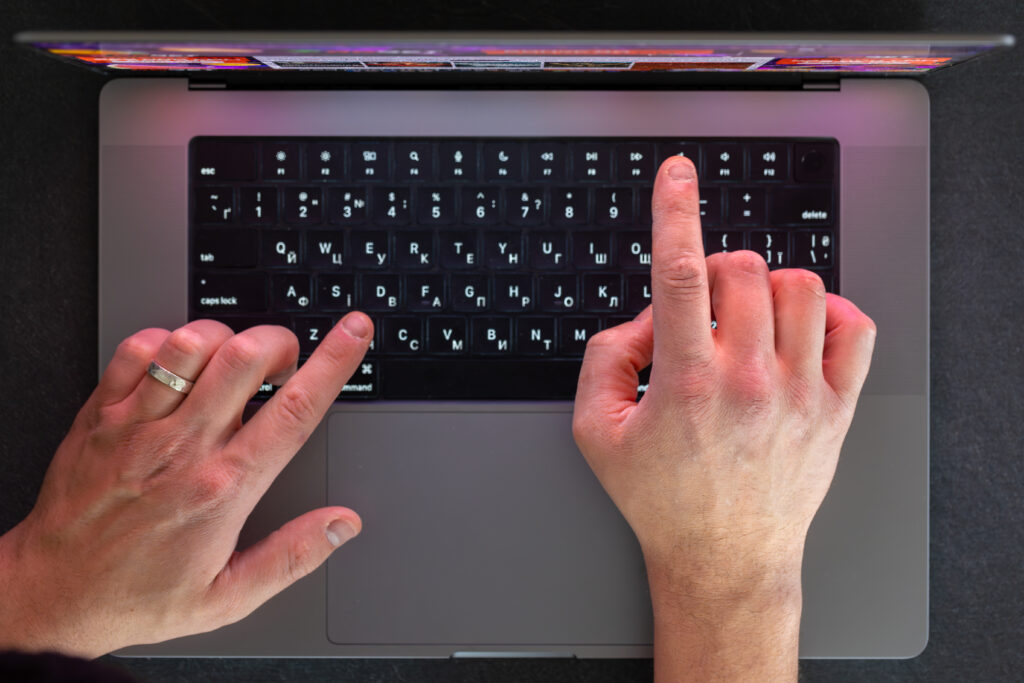
Imagine coding without shortcuts. Every time you need to save, copy, or navigate, you’d have to rely on the mouse. Over time, that’s hours wasted. Shortcuts not only save time but also help you stay in the “flow state” where coding feels natural and uninterrupted.
General OS Shortcuts Every Coder Should Know
Windows Shortcuts
- Ctrl + C / Ctrl + V: Copy and paste with ease.
- Ctrl + Z / Ctrl + Y: Undo and redo actions instantly.
- Alt + Tab: Switch between open applications smoothly.
Mac Shortcuts
- Cmd + C / Cmd + V: Classic copy and paste.
- Cmd + Tab: Quickly move between apps.
- Cmd + Space: Open Spotlight search for quick navigation.
File and Project Navigation Shortcuts
Open, Save, and Close Files Quickly
- Ctrl + S / Cmd + S: Save instantly.
- Ctrl + W / Cmd + W: Close the current file.
- Ctrl + O / Cmd + O: Open files in a flash.
Switching Between Tabs
Jumping between multiple files is common:
- Ctrl + Tab (Windows) / Cmd + Option + → or ← (Mac): Navigate across open tabs.
Project Search Shortcuts
- Ctrl + Shift + F / Cmd + Shift + F: Search across the entire project in seconds.
Text Editing Shortcuts for Coders
Copy, Cut, and Paste Like a Pro
- Ctrl + X / Cmd + X: Cut selected text.
- Ctrl + D (VS Code): Duplicate the line quickly.
Undo and Redo Actions
- Ctrl + Z / Cmd + Z: Undo mistakes fast.
- Ctrl + Y / Cmd + Shift + Z: Redo your last action.
Select All and Smart Text Selection
- Ctrl + A / Cmd + A: Select all text instantly.
- Shift + Arrow Keys: Highlight text step by step.
Cursor Movement Shortcuts
Jumping Between Words and Lines
- Ctrl + → or ← (Windows) / Option + → or ← (Mac): Skip between words.
- Home / End: Jump to line start or end.
Move to Start and End of File
- Ctrl + Home / Ctrl + End (Windows): Jump to file start or end.
- Cmd + ↑ / Cmd + ↓ (Mac): Do the same effortlessly.
Indentation and Formatting Shortcuts
Indent and Unindent Code Blocks
- Tab / Shift + Tab: Manage indentation neatly.
Auto-Format and Clean Code
- Shift + Alt + F (VS Code): Auto-format your code instantly.
Search and Replace Shortcuts
Find in File
- Ctrl + F / Cmd + F: Search inside a file.
Find and Replace Across Project
- Ctrl + H / Cmd + Option + F: Replace in bulk across files.
Debugging Shortcuts
Run and Stop Code Execution
- F5 (VS Code): Run the program.
- Shift + F5: Stop execution.
Set and Remove Breakpoints
- F9 (VS Code): Toggle breakpoints quickly.
Version Control Shortcuts (Git Integration)
Commit and Push Code Quickly
- Ctrl + Enter (Commit Message in VS Code): Save time when committing.
Navigate Between Changes
- Alt + F5 (Visual Studio): Move through changes.
Terminal Shortcuts for Coders
Clear Screen
- Ctrl + L: Clear the terminal.
Command History Navigation
- ↑ and ↓ arrows: Browse previous commands.
Browser Shortcuts for Web Developers
Open Developer Tools
- F12 / Ctrl + Shift + I: Inspect elements and debug websites.
Refresh and Hard Refresh
- Ctrl + R / Cmd + R: Refresh quickly.
- Ctrl + Shift + R / Cmd + Shift + R: Hard refresh to clear cache.
Shortcuts Specific to Popular Code Editors
VS Code Shortcuts
- Ctrl + Shift + P / Cmd + Shift + P: Open command palette.
- Ctrl +
/ Cmd +: Open integrated terminal.
Sublime Text Shortcuts
- Ctrl + D: Select the next matching word.
- Ctrl + P: Quick-open files.
IntelliJ/JetBrains Shortcuts
- Shift + Shift: Search anything in the project.
- Alt + Enter: Get quick fixes and suggestions.
Tips for Memorizing Keyboard Shortcuts
Practice Daily
The more you use them, the faster they become second nature.
Use Cheat Sheets and Sticky Notes
Print shortcuts or jot them on sticky notes until they stick.
Conclusion
Mastering keyboard shortcuts isn’t just about saving a few seconds—it’s about developing coding fluency. When you don’t have to stop and think about every action, you free your brain to focus on problem-solving and creativity. Whether you’re coding in VS Code, debugging in a browser, or navigating your terminal, these shortcuts will make your journey smoother. Start with a few at a time and build your way up—you’ll thank yourself later.
FAQs
1. What are the most important keyboard shortcuts for new coders?
The basics include copy, paste, save, undo, and search shortcuts. Once comfortable, move on to editor-specific shortcuts.
2. How can I memorize shortcuts faster?
Practice daily, use sticky notes, and focus on a few at a time instead of overwhelming yourself.
3. Are shortcuts the same across all editors?
No, while some are universal, most editors like VS Code, Sublime, or IntelliJ have their own unique shortcuts.
4. Should I learn Mac or Windows shortcuts?
Learn based on the OS you use daily. The concepts remain similar, but key combinations differ.
5. Do keyboard shortcuts really make a difference in coding speed?
Absolutely. They can cut coding time by half and help you maintain focus without constant mouse interruptions.


Table of Content
 5.0
5.0
Unlock your new design team today
Get a team of skilled professionals and all the benefits that come with top-grade in-house designers—for a flat fee.
Book a free call